> For the complete documentation index, see [llms.txt](https://docs.sealights.io/knowledgebase/llms.txt). Markdown versions of documentation pages are available by appending `.md` to page URLs; this page is available as [Markdown](https://docs.sealights.io/knowledgebase/setup-and-configuration/integrations/rest-apis/postman-sealights-api-collection.md).
# Postman: SeaLights API Collection
## Using the SeaLights Public API Postman Collection
This guide will walk you through using the Postman collection provided for our public API. The collection utilizes environment variables to streamline your requests.
**Target Audience**
This guide is intended for users with a basic understanding of Postman and API interactions.
**Prerequisites**
* A Postman account (free or paid) - [Postman: The World's Leading API Platform | Sign Up for Free](https://www.postman.com/)
* Our [Public API Documentation](https://api-doc.sealights.io/)
*Note: Throughout this guide, we'll use the term "env file" to refer to the Postman environment file.*
### Importing the Collection
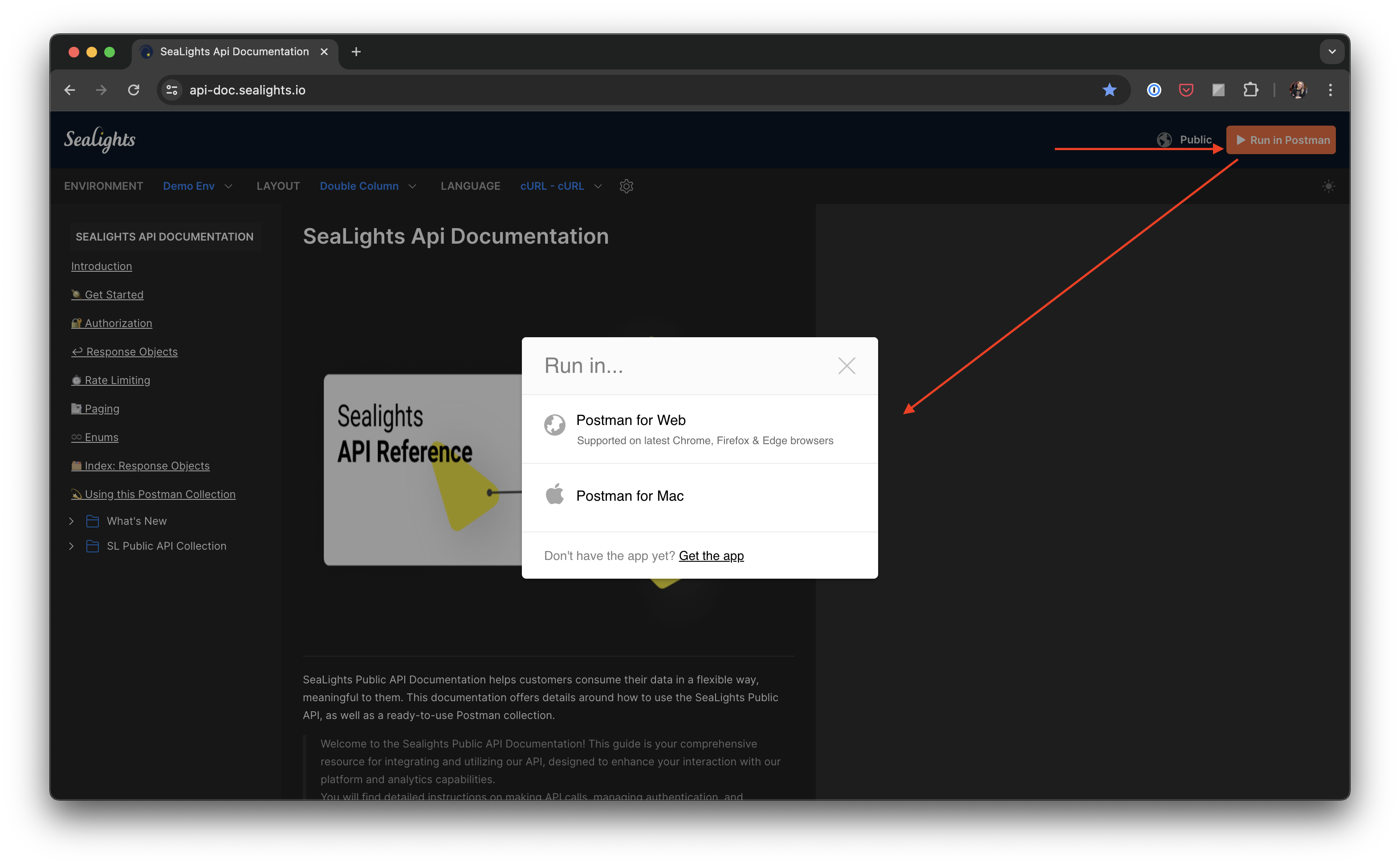
1. Navigate to our [Public API Documentation](https://api-doc.sealights.io/).
2. Locate the "Run in Postman" button and click it.
* Select your preference: Postman for Web or the Postman Desktop Client.
In this example, we’ll select Postman for Web
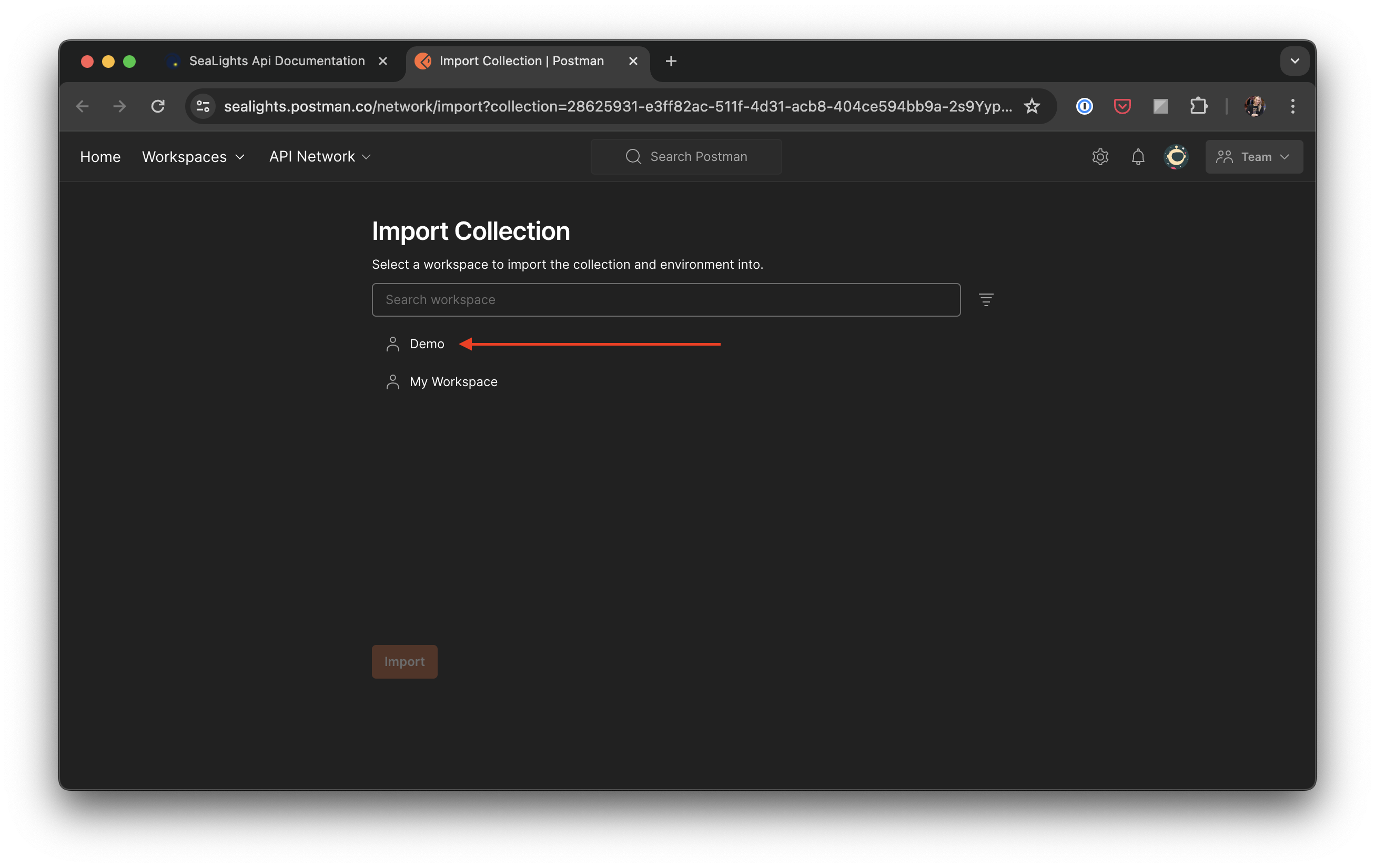
3. Select the workspace into which you want to import the collection and click “Import”
n this example, we’re importing to a workspace named Demo
### Setting Up Your Environment
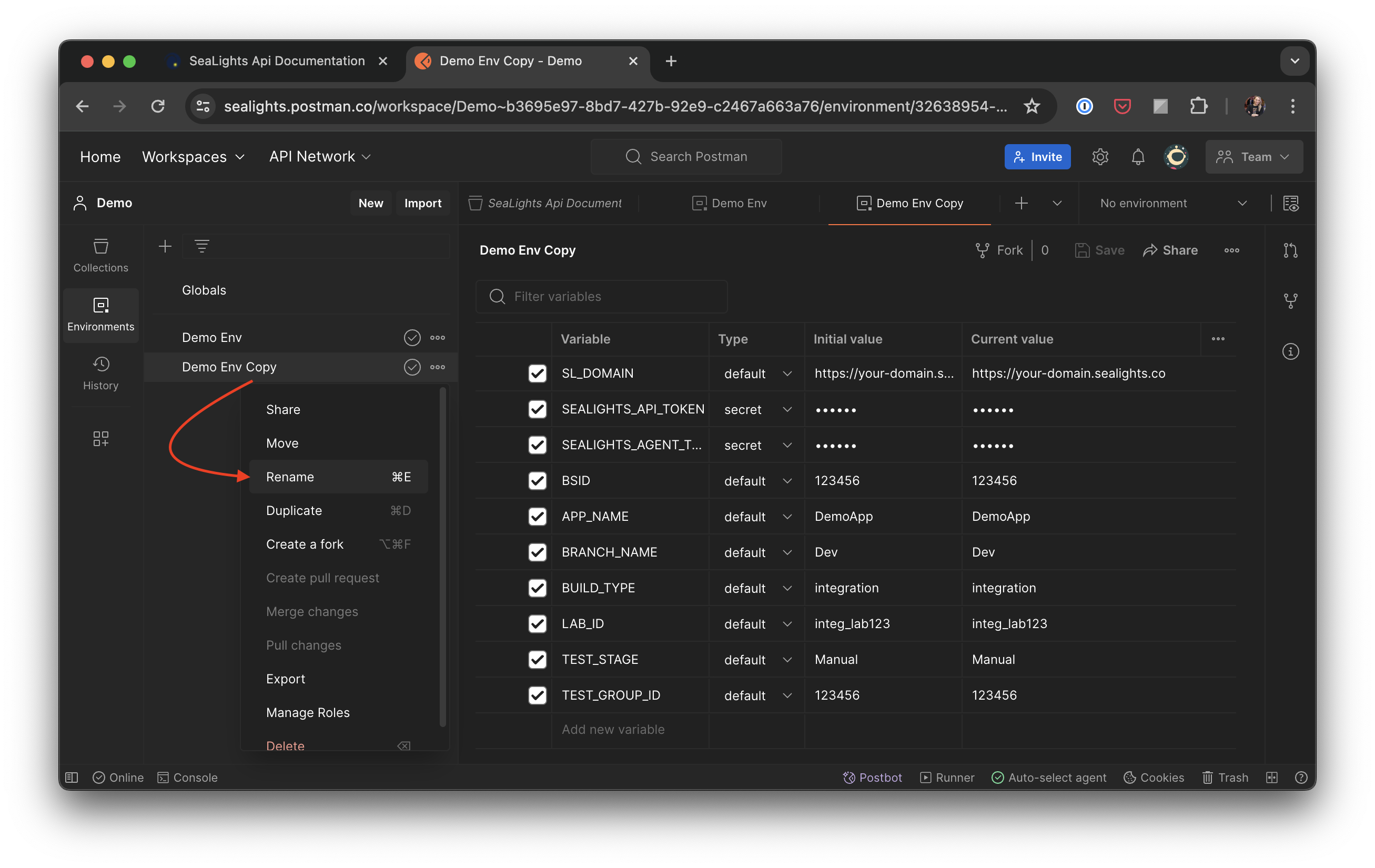
1. In the Postman sidebar, select Environments. Right-click on the pre-populated environment named "Demo Env" and select Duplicate.
2. Right-click on "Demo Env Copy" and select Rename.
3. Choose a descriptive name for your environment (e.g., "CompanyName Env") and save. *This will allow you to keep our demo environment file as a boilerplate, should you ever need to create more than one Postman environment.*
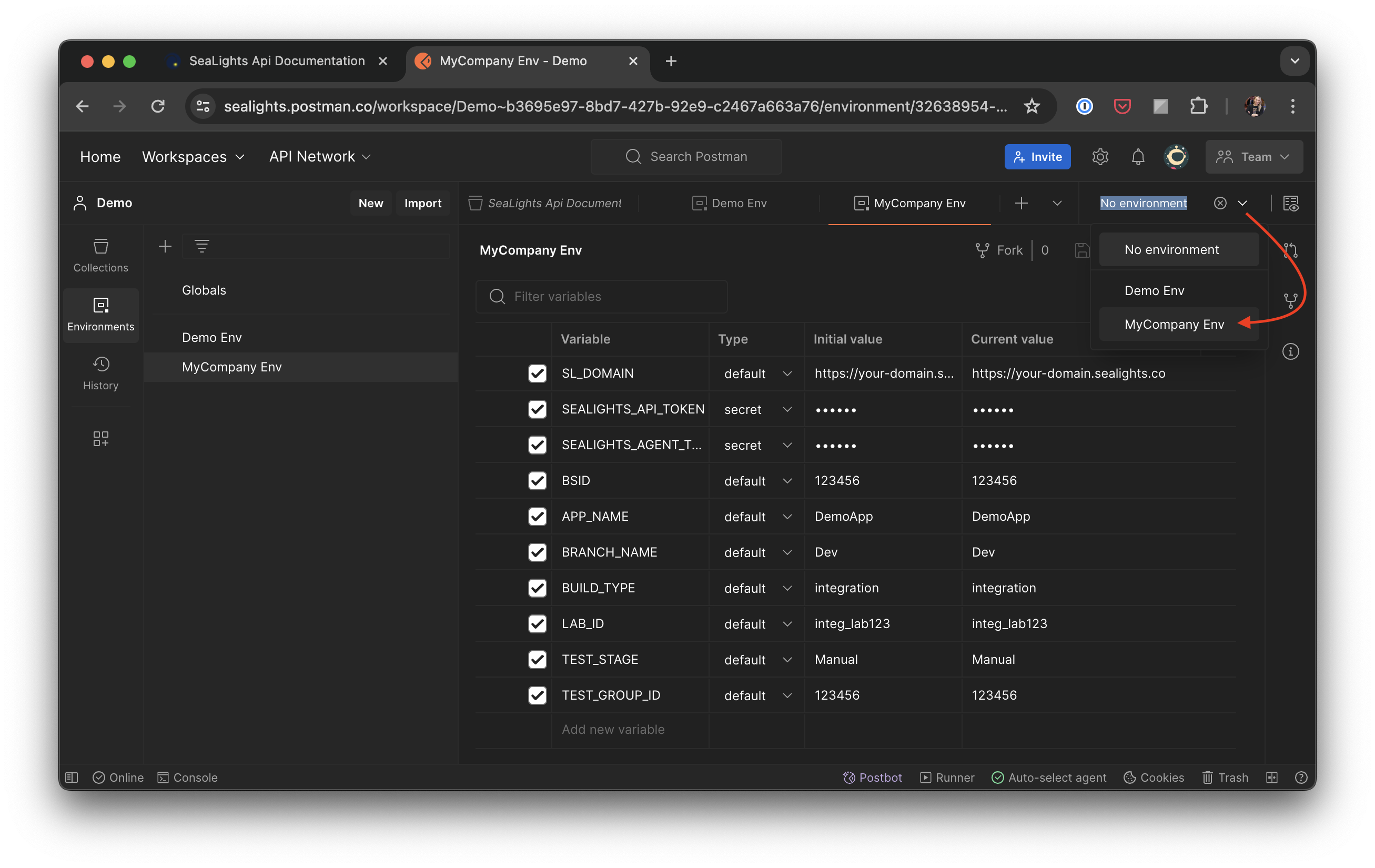
4. At the top right of the Postman workspace, click the environment selection dropdown. (If you don't have another environment already set, this will say "No Environment".) Select your new environment "CompanyName Env" from the list.
Next, we'll walk through setting the value of your variables in your new environment
#### Understanding Environment Variables
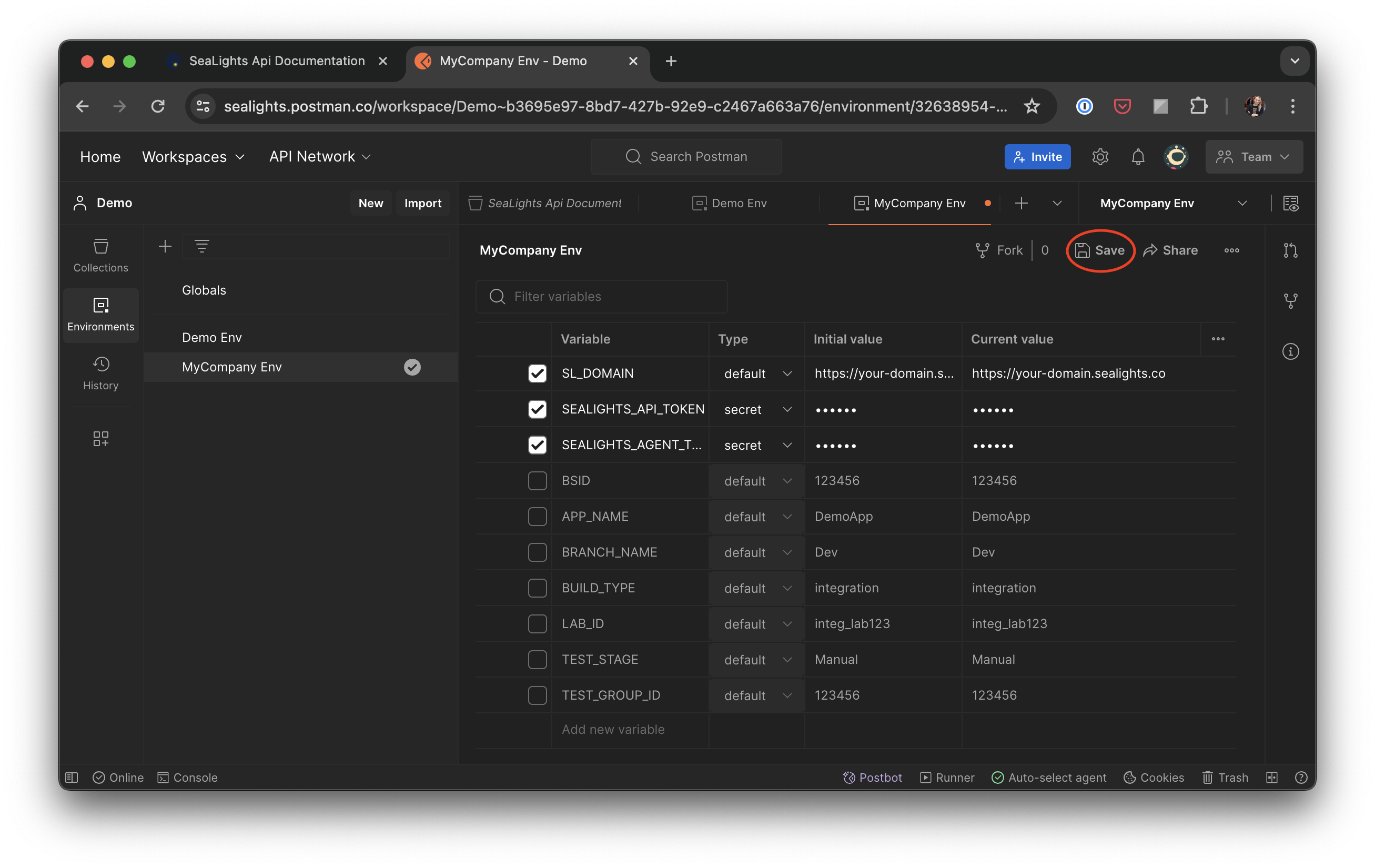
The provided "Demo Env" includes several pre-defined variables. THREE of these variables are **required** for basic API interaction.
* SL\_DOMAIN: This variable holds the base URL for our API. **Be sure to remove a trailing slash from your URL!**
* e.g. `https://your-domain.sealights.co`
* SEALIGHTS\_API\_TOKEN: Found in your SeaLights UI (/settings/tokens/api-tokens).
* Click the Gear Icon to access Settings >> From left sidebar: Integration >> API Tokens
* SEALIGHTS\_AGENT\_TOKEN: Found in your SeaLights UI (/settings/tokens/agent-tokens).
* Click the Gear Icon to access Settings >> From left sidebar: Cockpit & Onboarding >> Agent Tokens
{% hint style="info" %}
IMPORTANT: The remaining variables in the "Demo Env" are for demonstration and documentation purposes only. These variables represent query parameters or path variables specific to individual API requests. It's generally recommended to set these directly within each request, not globally in the environment.
{% endhint %}
Once you have updated your new environment file with these three variables, uncheck the remaining variables in the environment file. This will guard against using “dummy” information throughout the collection. Click “Save” near the top right.
Using Multiple Environments (Advanced Users)
**Using Multiple Environments**
Postman allows you to manage and switch between multiple environment files. This is useful for testing different API configurations or managing access for various accounts.
In the Postman sidebar, navigate to the Environments tab. Click the Manage Environments button (gear icon). Here you can create additional environment files from our boilerplate, using the same "duplicate and rename" process we used at the beginning of this guide.
Tip: Users who need to interact with multiple SeaLights instances, should consider creating a dedicated environment file with only the relevant variables for each instance. This helps maintain organization and clarity.
**Additional Considerations**
* **Security**: It's crucial to safeguard your API Key. Avoid committing it to public repositories like version control systems.
* **Updates**: We may occasionally update the Postman collection structure or environment variables. Refer to our API documentation for the latest version.
By following these steps and understanding environment variable usage, you'll be well on your way to efficiently interacting with our Public API using Postman.
### Working with the Collection
1. Click on **Collections** in the left sidebar to return to your imported collection.
2. Select your newly created environment from the dropdown at the top right of the Postman window (if not already set)
Setting your environment
#### **Using Requests:**
* The collection's requests will now utilize the `SL_DOMAIN`, `SEALIGHTS_API_TOKEN`, and `SEALIGHTS_AGENT_TOKEN` you defined in your environment.
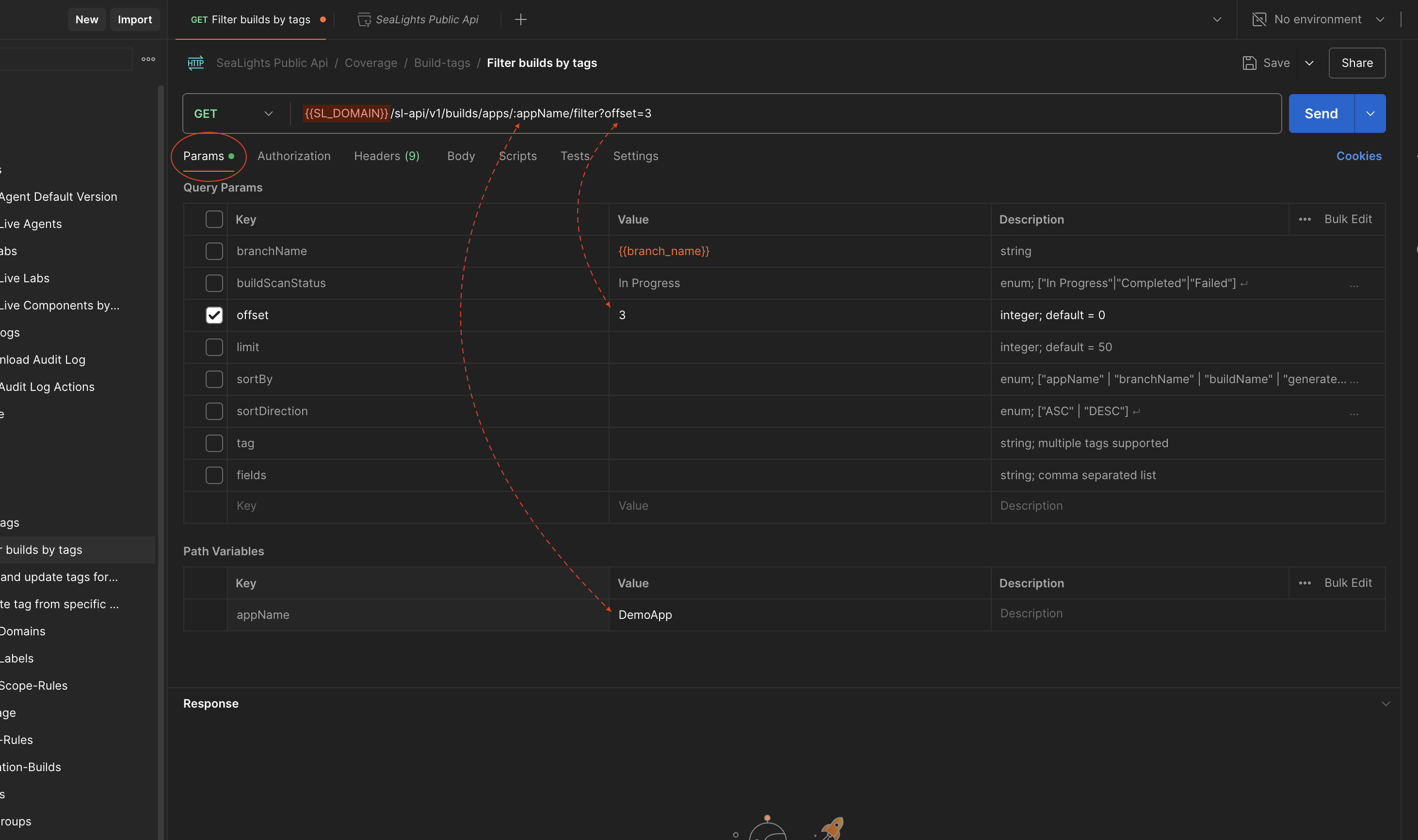
* Each request may have additional query parameters and/or path variables. These can be updated within the request's **Parameters** tab.
* Only query parameters that are “checked” will be sent with the request
* Path variables are always sent with the request
* NOTE: The value of variables is not shown in the URL string, but if the variable is set, it will be used when the request is sent. For this reason, in the screenshot above, the value of `:appName` has not been replaced by “DemoApp”, but the query parameter of “offset” is being sent with a value of “3”
{% hint style="warning" %}
REMEMBER: Throughout the collection, variables other than the “Top 3” (such as `{{branch_name}}` or `{{bsid_var}}`) may be referenced in query parameters and path variables. These are ONLY PLACEHOLDERS. Feel free to overwrite them - they do not need to be managed at the Environment level.
{% endhint %}
#### “In-Context” Documentation
Using the “paper” icon found on the right toolbar will reveal additional API documentation without leaving Postman’s interface.
This documentation is context sensitive: what is revealed is based on the endpoint/request you have open.
---
# Agent Instructions
This documentation is published with GitBook. GitBook is the documentation platform designed so that both humans and AI agents can read, navigate, and reason over technical content effectively. Learn more at gitbook.com.
## Querying This Documentation
If you need additional information that is not directly available in this page, you can query the documentation by asking a question.
Perform an HTTP GET request on the following URL with the `ask` and `goal` query parameters:
```
GET https://docs.sealights.io/knowledgebase/setup-and-configuration/integrations/rest-apis/postman-sealights-api-collection.md?ask=&goal=
```
`ask` is the immediate question: it should be specific, self-contained, and written in natural language.
`goal` is what the user is ultimately trying to achieve, the reason they need the answer. Sharing it helps GitBook give you a better, more relevant answer. A goal is most helpful when it describes the outcome the user wants rather than restating the question. For example, with `ask=how do I create an API token`, a goal like `automate deployments from our CI pipeline` lets GitBook tailor the answer to that use case.
The response will contain a direct answer to the question and relevant excerpts and sources from the documentation.
Use this mechanism when the answer is not explicitly present in the current page, you need clarification or additional context, or you want to retrieve related documentation sections.