> For the complete documentation index, see [llms.txt](https://docs.sealights.io/knowledgebase/llms.txt). Markdown versions of documentation pages are available by appending `.md` to page URLs; this page is available as [Markdown](https://docs.sealights.io/knowledgebase/coverage-and-quality-insights/dynamic-filters-and-saved-filters.md).
# Dynamic Filters & Saved Filters
This document provides a comprehensive guide to the Saved Filters functionality. This feature allows users to create, save, and reuse complex filtering logic across the **Coverage Dashboard** and the **Multi-App Coverage Report**, ensuring consistent data visibility across the organization.
***
## Filter Types: Quick vs. Advanced
Before diving into the management of filters, it is important to understand the two distinct ways you can filter your data:
#### 1. Quick Filters (Static Selection)
Quick filters are designed for fast, manual selection of specific entities.
* App & Branch Selection: Manually select the specific applications and branches you want to monitor.
* Smart Defaults: By default, the system selects the "Branch with the latest build". This is designed to automatically surface the code currently under active development/testing, saving you from searching for the newest branch name.
* Code Labels: You can use Code Labels to refine your view.
* In the Coverage Dashboard: Code Labels filter the app list *and* the code itself, meaning the coverage metrics (percentages) reflect only the specific files within those labels.
* In the Multi-App Coverage Report: Code Labels currently only filter the list of apps. The metrics shown reflect the Entire App code, not just the labeled files.
#### 2. Advanced Filters (Dynamic Rules)
Advanced filters use a rules-based engine to create "Dynamic Views". Instead of picking apps by name, you define criteria (e.g., "Any app starting with 'Payment'").
* Automation: These filters stay up-to-date automatically. When a new app or branch is onboarded that matches your rules, it appears in your dashboard without manual intervention.
* Complex Logic: Supports nested groups and AND/OR statements to handle sophisticated organizational needs.
***
## The Power of Dynamic Filters (Advanced)
The core advantage of Advanced Filters is the shift from manual upkeep to rule-based automation.
#### Why Dynamic Rules Matter
In a traditional "Quick Filter" setup, you manually check boxes. If your team onboarded a new microservice or created a new release branch yesterday, your dashboard would not show it until you manually updated the settings.
Advanced Saved Filters solve this through "Set and Forget" logic: Once a filter is saved with specific rules (e.g., `Branch` `contains` `release`), it stays up-to-date automatically. As soon as a new application or branch matching that rule is onboarded to SeaLights, it will appear in your filtered results without any manual intervention.
#### Key Benefits over Quick Filters:
* Zero Maintenance: No need to update the filter every time a new app is added.
* Consistency: Every team member sees the exact same data based on defined logic.
* Scalability: Perfect for environments with dozens/hundreds of microservices where manual selection is impossible.
***
## Advanced Logic: Groups, AND, and OR
Advanced filters allow you to nest logic to handle complex organizational requirements. While simple filters use a single group, Multiple Groups allow you to combine different logical "realms" that cannot be expressed in a simple list.
#### 1. Logic Within a Group
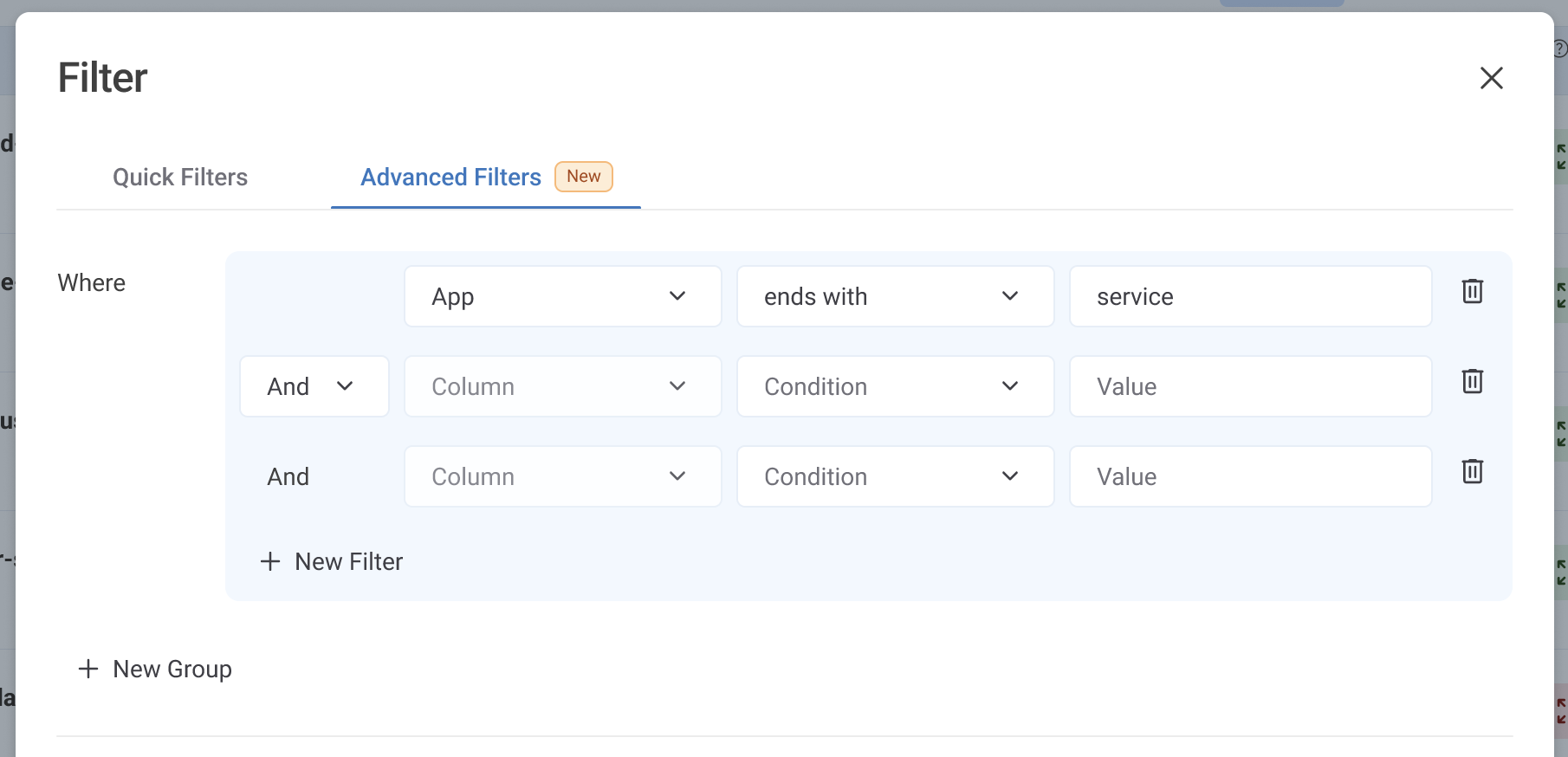
When you add multiple filters to a single group, you choose one operator (AND or OR) to connect them all.
* OR within a Group: Creates an "Either/Or" list (e.g., `App starts with "Pay"` OR `App starts with "Bill"`).
* AND within a Group: Narrows down a specific target (e.g., `App contains "Service"` AND `Branch is "master"`).
Single Group
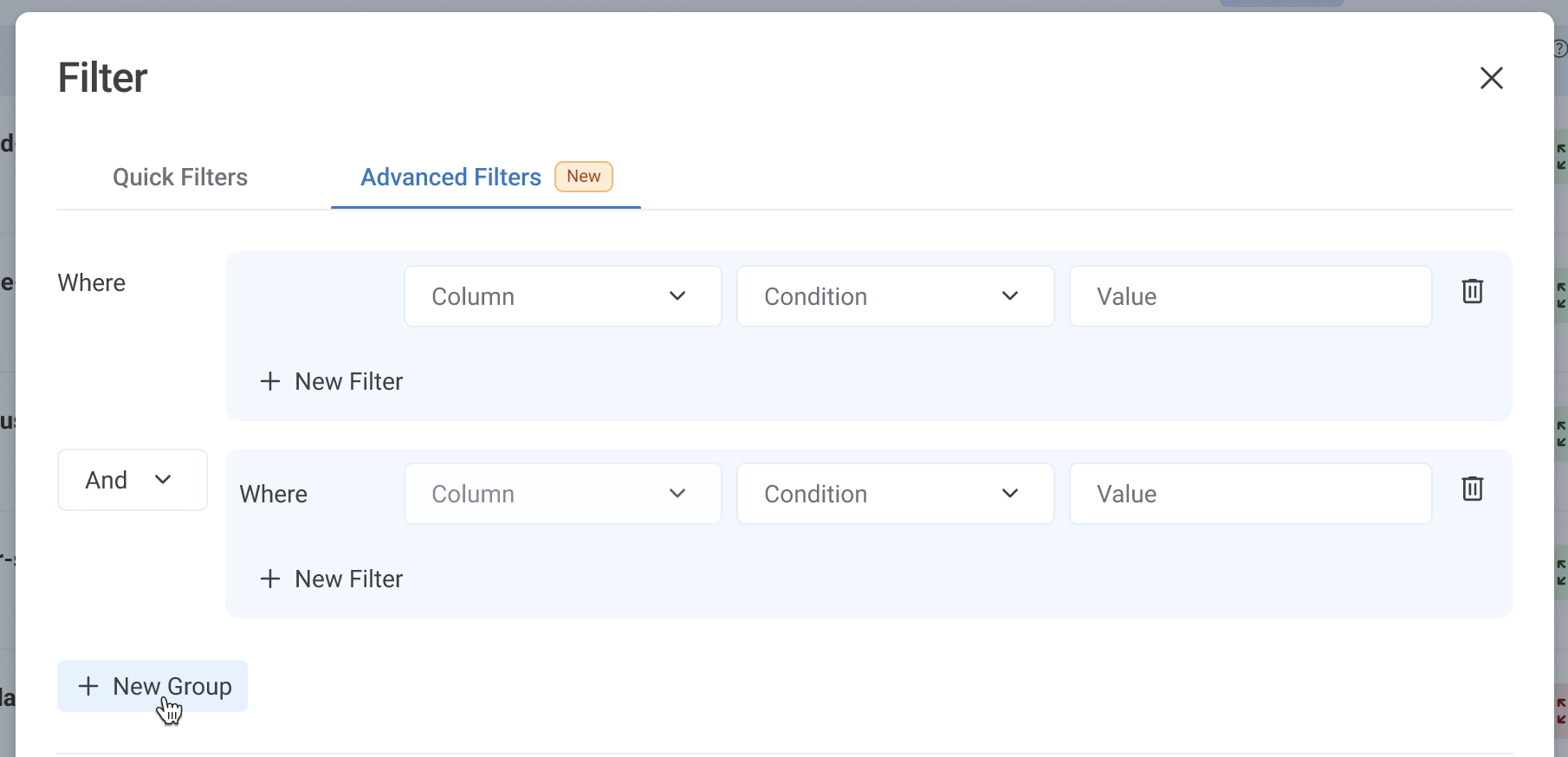
#### 2. Logic Between Groups (Complex Examples)
Multiple groups are essential when you need to combine different sets of requirements that use different internal logic.
Multiple Groups
#### Example A: The "Hybrid Quality Gate" (Group 1 OR Group 2)
* Scenario: A manager wants to see the status of a specific mission-critical app AND any other app that is currently in a risky state (hotfixing).
* Group 1 (Logic: AND): `App` is `Core-Banking-Engine` AND `Branch` is `master`
* Operator Between Groups: OR
* Group 2 (Logic: AND): `Branch` `contains` `hotfix`
* The Result: You see exactly one specific stable branch of your core engine, *plus* a dynamic list of every other app in the system that has an active hotfix. You cannot do this in one group because Group 2 doesn't care about the App Name, but Group 1 is very specific.
#### Example B: The "Scoped Department Audit" (Group 1 AND Group 2)
* Scenario: You want to audit the "Inventory" department, but you only care about their "Legacy" services and their "Production" branches.
* Group 1 (Logic: OR): `App` `starts with` `Inv-Legacy` OR `App` `contains` `Warehouse-v1`
* Operator Between Groups: AND
* Group 2 (Logic: OR): `Branch` `is` `main` OR `Branch` `is` `master` OR `Branch` `contains` `prod`
* The Result: This ensures that you *only* see results if the app is one of the legacy types AND the branch is one of the production types. It filters out all feature/dev branches for those specific apps.
***
## Practical Use Cases
#### 1. The "Release Candidate" Stream (Branch-Based)
The Goal: Monitor the quality of all code currently in the release pipeline across the entire company/group.
* The Rule: `Branch` -> `contains` -> `RC-`
* The Result: Any branch named `RC-2026.1` or `billing-RC-v2` will automatically populate this view.
* The Result: Whether you have 5 apps or 500, any branch named `RC-2026.1` or `billing-RC-v2` will automatically populate this view.
#### 2. Department-Specific Views (App-Based)
The Goal: A Lead Architect/Manager wants a single dashboard that only shows the 40+ microservices owned by the "Payments" department.
* The Rule: `App` -> `starts with` -> `pay-`
* The Result: By using a naming convention where all payment services start with a specific prefix, this filter ensures that even if a developer creates a new service called `pay-crypto-wallet` tomorrow, it will automatically appear in the Architect's dashboard.
#### 3. Critical Hotfix Monitoring
The Goal: Ensure that urgent hotfixes across all applications are meeting coverage standards before deployment.
* The Rule: `Branch` -> `contains` -> `hotfix`
* The Result: Provides a "High Alert" view. If a developer creates a hotfix branch in a panic at 3:00 AM, the Quality Manager will see it in this filtered view immediately without needing to know the branch name in advance.
***
## How to Manage Saved Filters
#### Creating a Filter
1. Open the Filter Popup from the dashboard.
2. Configure your desired logic in either the Quick or Advanced tab.
3. Click Save as New View (Visible to Admin and DevOps roles).
4. Provide a name (up to 30 characters). Once saved, it is immediately available in the Saved Filters dropdown **for all users**.
#### Using and Deleting
* Selection: Pick any filter from the dropdown to apply it.
* Available on Coverage Dashboard and on Multi-App Coverage Report upon report creation/edit.
* Metadata: Hover over the info icon `(i)` to see the creator's name and the creation date.
* Deletion: Admins/DevOps can delete filters they created by clicking the trash icon. A confirmation prompt will appear to prevent accidental loss.
#### Permissions Overview
| Action | Admin / DevOps | Regular User |
| ------------------------ | -------------- | ------------ |
| Apply Saved Filters | ✅ | ✅ |
| Create New Saved Filters | ✅ | ❌ |
| Delete Own Filters | ✅ | ❌ |
***
{% hint style="warning" %}
#### Current Limitations
* Multi-App Coverage Report: Code Labels filter the app list but the metrics show the Entire App (not just labeled files).
* Editing of Saved Filters: No direct edit available. Delete and recreate to update logic.
* Scope: Filtering is limited to App Name and Branch Name. Dates, stages, and Lab IDs are not yet supported.
{% endhint %}
---
# Agent Instructions
This documentation is published with GitBook. GitBook is the documentation platform designed so that both humans and AI agents can read, navigate, and reason over technical content effectively. Learn more at gitbook.com.
## Querying This Documentation
If you need additional information that is not directly available in this page, you can query the documentation by asking a question.
Perform an HTTP GET request on the following URL with the `ask` and `goal` query parameters:
```
GET https://docs.sealights.io/knowledgebase/coverage-and-quality-insights/dynamic-filters-and-saved-filters.md?ask=&goal=
```
`ask` is the immediate question: it should be specific, self-contained, and written in natural language.
`goal` is what the user is ultimately trying to achieve, the reason they need the answer. Sharing it helps GitBook give you a better, more relevant answer. A goal is most helpful when it describes the outcome the user wants rather than restating the question. For example, with `ask=how do I create an API token`, a goal like `automate deployments from our CI pipeline` lets GitBook tailor the answer to that use case.
The response will contain a direct answer to the question and relevant excerpts and sources from the documentation.
Use this mechanism when the answer is not explicitly present in the current page, you need clarification or additional context, or you want to retrieve related documentation sections.